
TL;DR
Block Remote Input lets an operator temporarily disable keyboard and mouse input on a remote Windows computer. It helps prevent someone at the remote device from accidentally typing, clicking, closing an application, or interrupting an update while the operator is working. Remote input is restored when the operator allows it again, the remote user presses Esc, the operator loses control, or the session ends.
You are working on a remote computer when the person at the device moves the mouse, starts typing, or closes the window you are using. In most cases, this leads to lost time and frustration for the technician. During a software installation, configuration change, or firmware update, however, an interruption can cause a process to fail and require significant recovery work.
ISL Online has traditionally prioritized keeping the person at the remote computer in control. The remote user could always interrupt the operator, which helped reduce the possibility of remote access being misused.
However, feedback from IT professionals showed that this could make certain support and maintenance tasks unnecessarily difficult. The new Block Remote Input feature gives operators uninterrupted control during those sensitive steps while retaining safeguards for the person at the remote computer.
What is Block Remote Input?
Block Remote Input temporarily disables keyboard and mouse input on a remote Windows computer.
In ISL Online, Remote input is allowed by default. The operator must deliberately activate the Block feature during a remote desktop session.
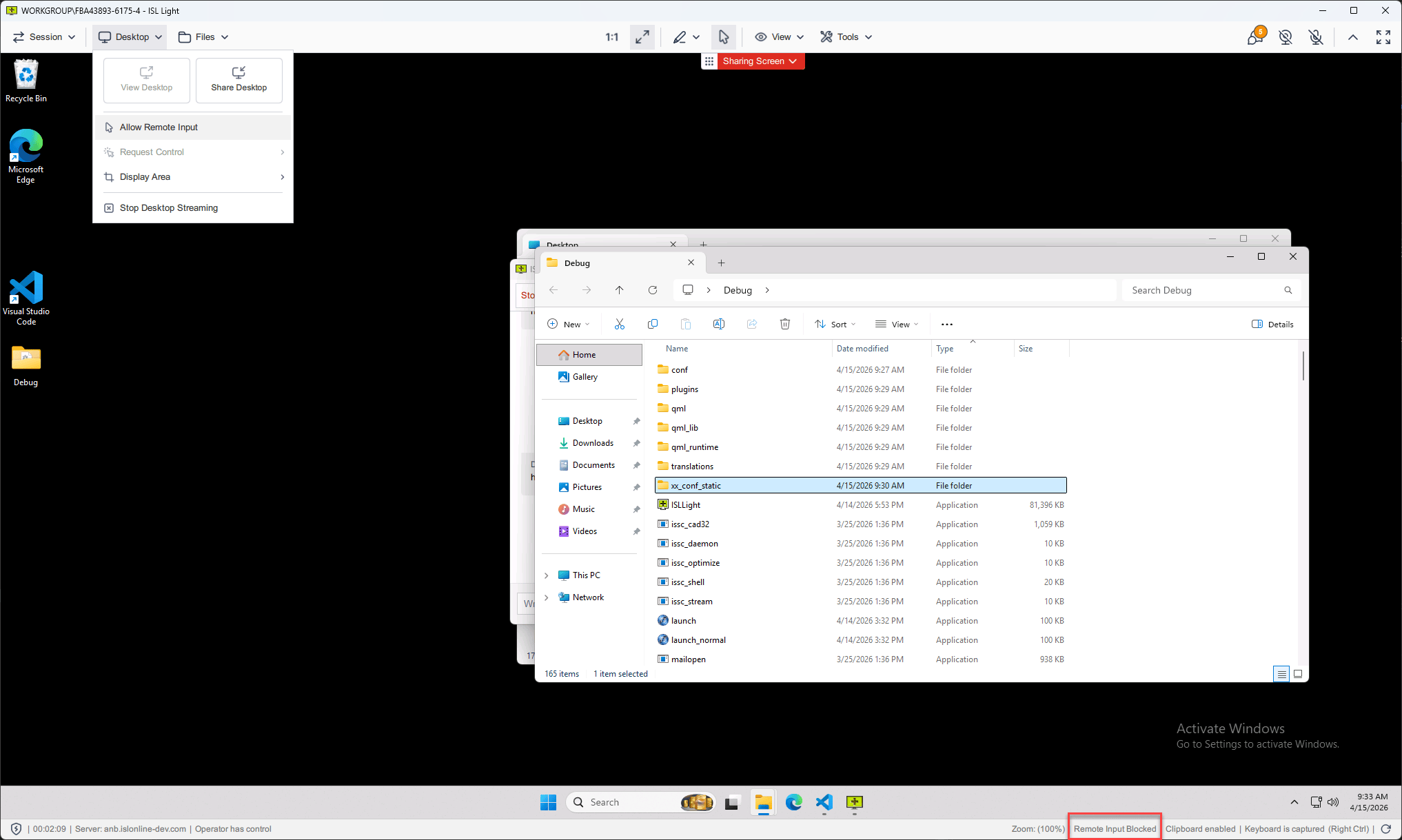
While the block is active:
- The operator retains control of the remote computer
- The remote keyboard and mouse no longer affect the computer
- The menu option changes from Block Remote Input to Allow Remote Input
- The status bar displays Remote Input Blocked
When the operator no longer needs uninterrupted control, they can select Allow Remote Input from the same menu.
How to use Block Remote Input
How you activate Block Remote Input depends on whether you are supporting someone in an attended session or connecting to an unattended computer.
During an attended support session
When supporting a user through ISL Light Client:
1. Open the Desktop dropdown in the ISL Light session toolbar.
2. Select Block Remote Input.
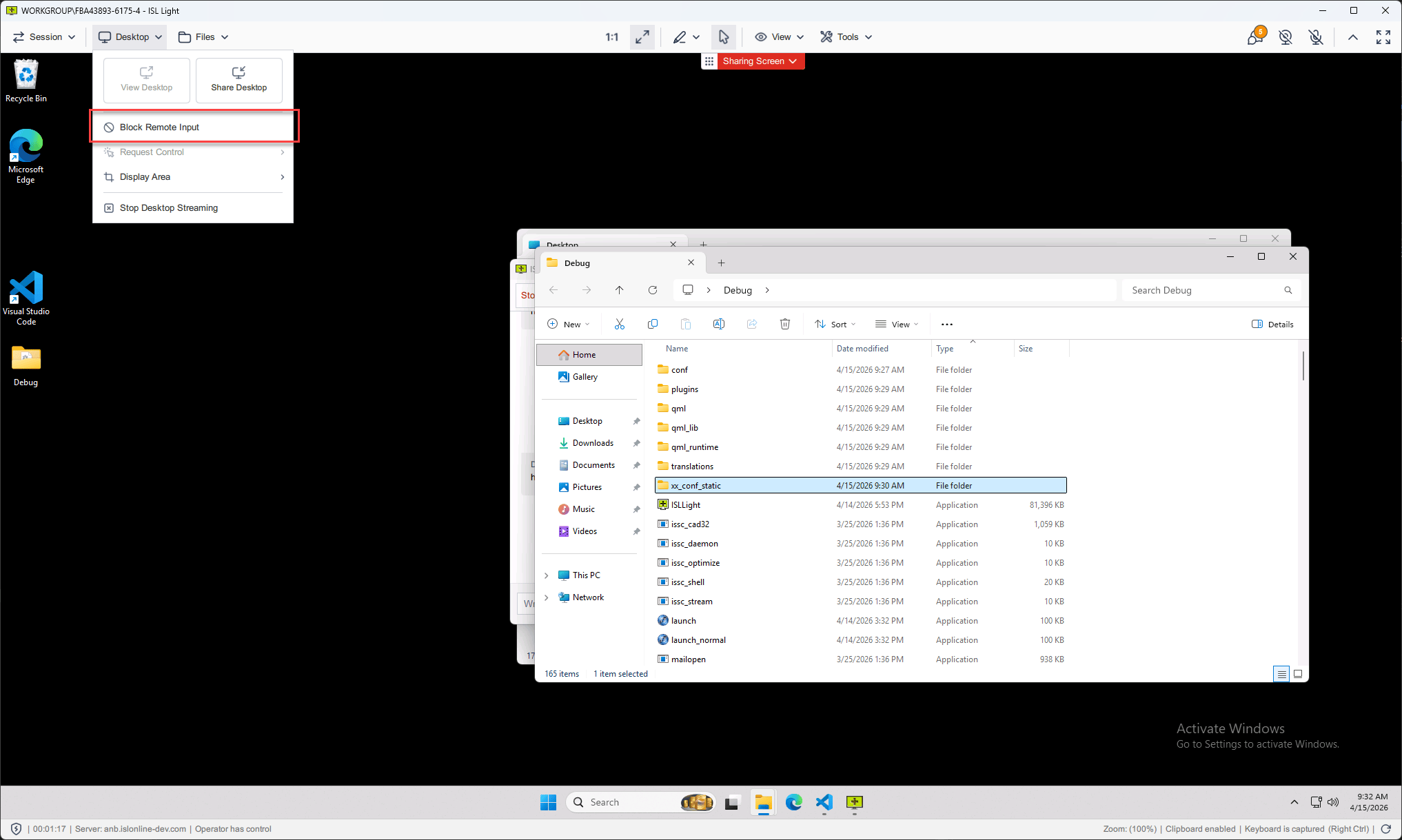
3. Ask the remote user to confirm the request.
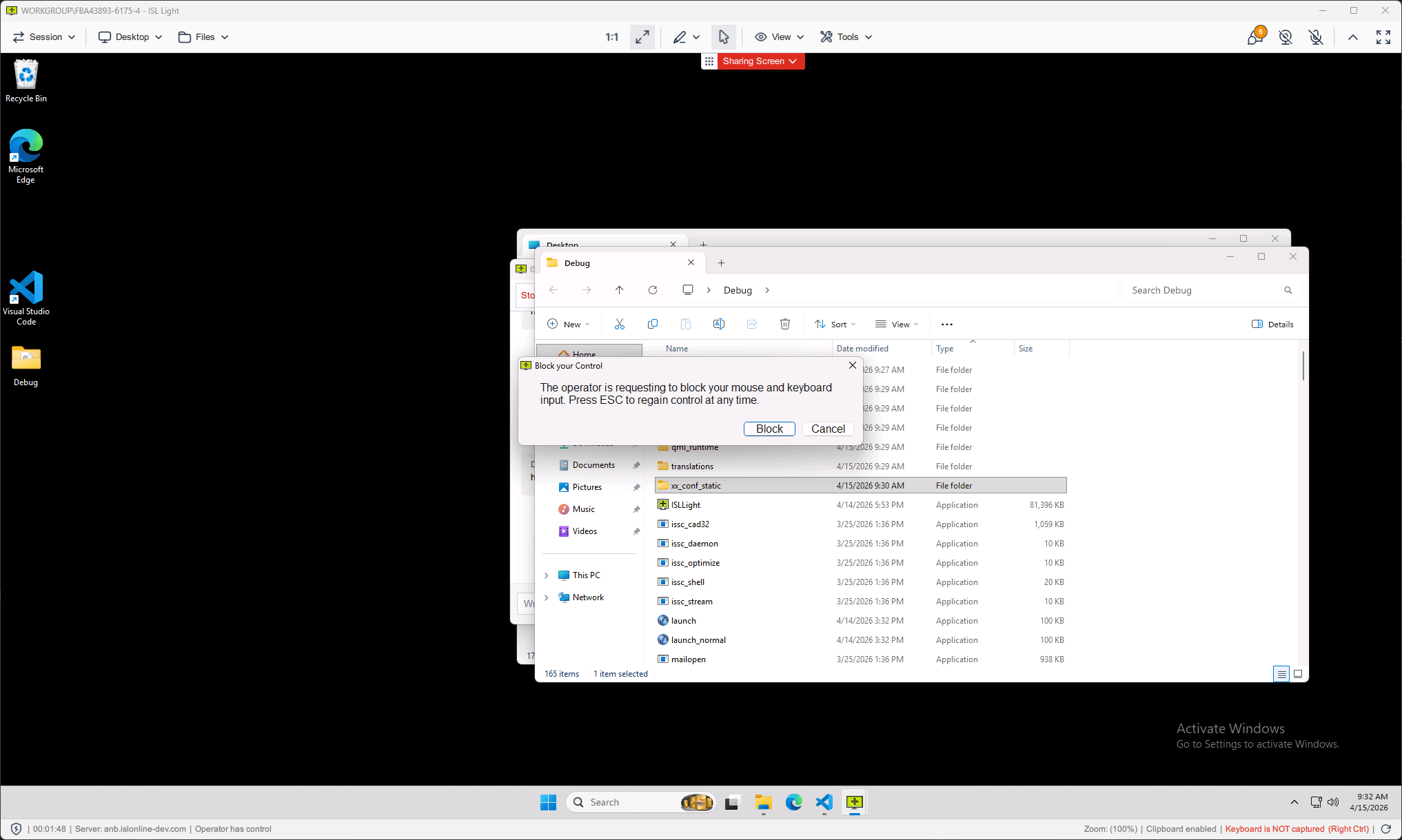
If the user approves, their keyboard and mouse input are temporarily disabled. They can restore local input at any time by pressing Esc. If they decline the request, remote input remains available.
It is helpful to explain why you need uninterrupted control before sending the request. For example:
“I need to temporarily block keyboard and mouse input while this update runs. You can press Esc if you need to regain control.”
Confirmation is also required when connecting to an ISL AlwaysOn computer using the Download Client option.
4. Remote input is blocked

The Remote Input Blocked message in the status bar confirms that the operator has temporarily disabled the remote keyboard and mouse. To restore local input, the operator can choose Allow Remote Input from the Desktop menu.
During an unattended access session
When connecting directly to a computer through ISL AlwaysOn without the Download Client, no additional confirmation is required. The computer has already been configured for unattended access, so the block is applied as soon as the operator enables it.
You can activate the feature after connecting by selecting Block Remote Input from the Desktop menu. You can also enable it before the session starts in the access password dialog under Connect Options.
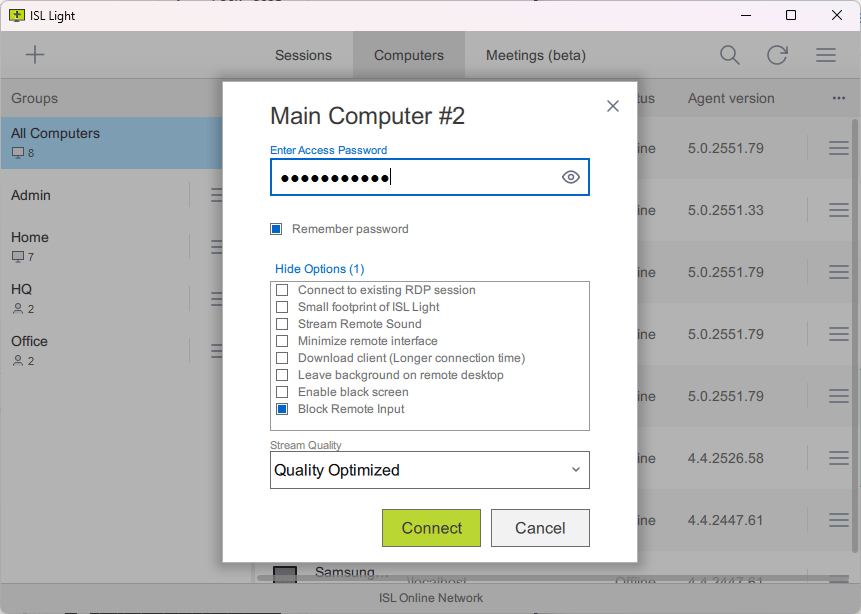
The option is disabled when the operator does not have control of the remote computer, such as when control has been revoked, screen sharing is inactive, or the connection has been lost.
For work that also requires screen privacy, ISL Online provides a separate Black Screen feature that hides activity on the remote display.
Supported operating systems and versions
Block Remote Input is currently available when connecting to remote computers running Windows.
When the remote operating system does not support the feature, ISL Light displays a message explaining that it is unavailable.
For unattended remote access sessions, ISL AlwaysOn must be updated to version 5.0.2551.107 or newer. When connecting to an older ISL AlwaysOn installation, the Block Remote Input option remains unavailable. Follow the instructions for upgrading ISL AlwaysOn if an older version is installed.
Availability also depends on whether the remote client supports the feature and whether the operator currently has control of the computer.

Try ISL Online for remote support and access
Use ISL Online to support users, access unattended computers, and manage remote work across Windows, macOS, Linux, and mobile devices. Create an account and start a free trial to see how it fits your support workflow.
Start your free trialMore control without removing safeguards
Block Remote Input addresses a practical challenge reported by ISL Online users: someone at the remote computer can unintentionally interrupt support or maintenance work at the worst possible moment.
The feature gives operators the control needed to protect sensitive tasks, while confirmation requirements, the Esc key, and automatic recovery continue to protect the person at the remote computer.
It is a focused addition for the moments when one set of hands on the computer is safer than two.