Grundlegende Funktionen
Sobald die Verbindung zum Remote-Computer hergestellt ist, stehen Ihnen alle Funktionen in der Sitzungs-Symbolleiste zur Verfügung. In diesem Handbuch werden der Aufbau und die Funktionen der Symbolleiste erläutert.
Überblick
Die Symbolleiste ist weiterhin in drei Hauptbereiche unterteilt:
- Linker Bereich: Steuerelemente für den Zugriff auf Sitzungen, den Desktop und Dateien.
- Mittlerer Bereich: Werkzeuge zur Verwaltung der Remote-Desktop-Ansicht und weitere Werkzeuge (Administratormodus, Neustart, Strg+Alt+Entf senden usw.)
- Rechter Bereich: Funktionen für Chat, Kamera/Mikrofon und Fenstersteuerung.
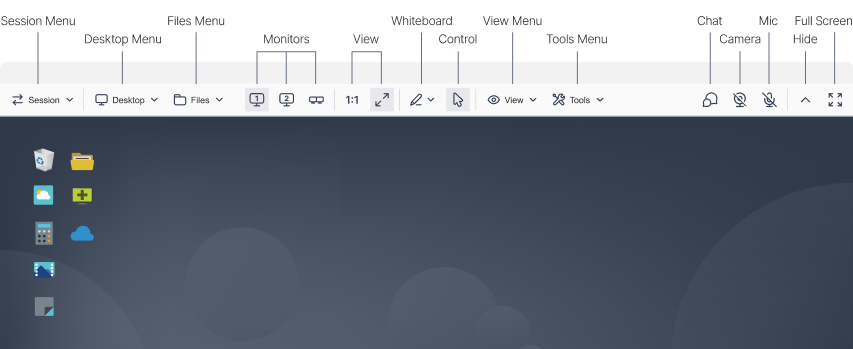
ISL Light > Sitzung > Neue Symbolleiste
Sitzungsmenü
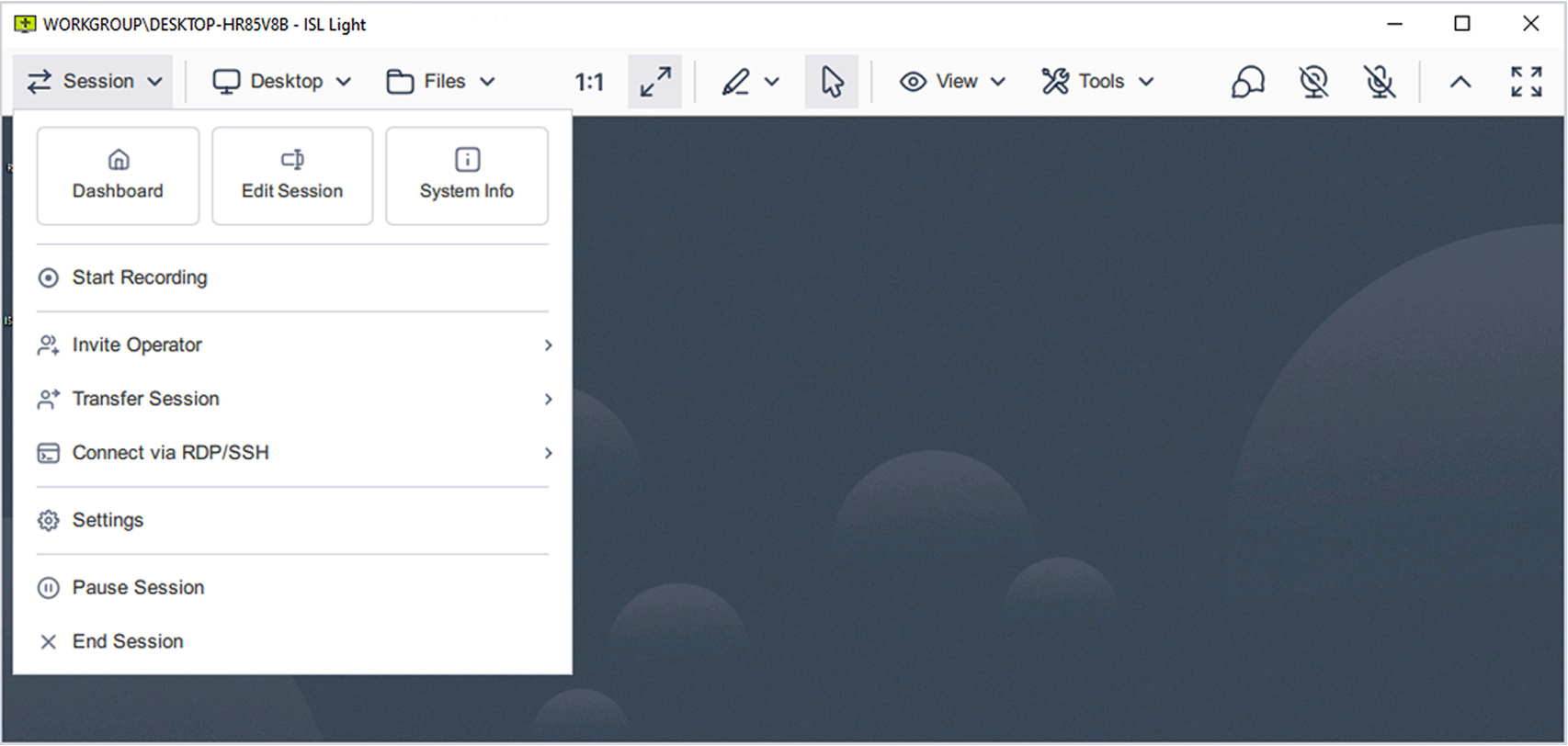
ISL Light > Sitzung > Menü „Sitzung“
- Dashboard: Rufen Sie die zentrale Übersicht auf, um alle laufenden Sitzungen oder Computer anzuzeigen. Ideal, um schnell zwischen aktiven Supportfällen zu wechseln oder unbeaufsichtigte Geräte zu verwalten.
- Sitzung bearbeiten: Fügen Sie einen Sitzungsnamen oder interne Notizen hinzu, um Sitzungen in Dashboards und Berichten besser zu organisieren und zu filtern
- Systeminformationen: Zeigen Sie detaillierte technische Daten zum Remote-Computer an (z. B. Betriebssystem, CPU, RAM, IP-Adresse), um die Fehlerbehebung und Diagnose zu erleichtern.
- Aufzeichnung starten: Zeichne die aktuelle Sitzung auf, einschließlich Chat, Audio und Video. Nützlich für Dokumentationszwecke, zur Einhaltung von Vorschriften oder zur Nachbereitung von Schulungen.
- Mitarbeiter hinzuziehen / Sitzung weiterleiten: Ziehen Sie einen weiteren Mitarbeiter hinzu oder leiten Sie die Sitzung weiter, ohne dass der Kunde sich erneut verbinden oder Codes eingeben muss.
- Verbindung über RDP/SSH herstellen: Starten Sie eine Remote-Sitzung über native RDP- oder SSH-Protokolle.
- Sitzung unterbrechen: Unterbrechen Sie eine aktive Sitzung und setzen Sie sie später fort, auch von einem anderen Gerät aus. So muss der Kunde den Sitzungscode nicht erneut eingeben.
- Sitzung beenden: Eine aktive Sitzung beenden.
Desktop-Menü
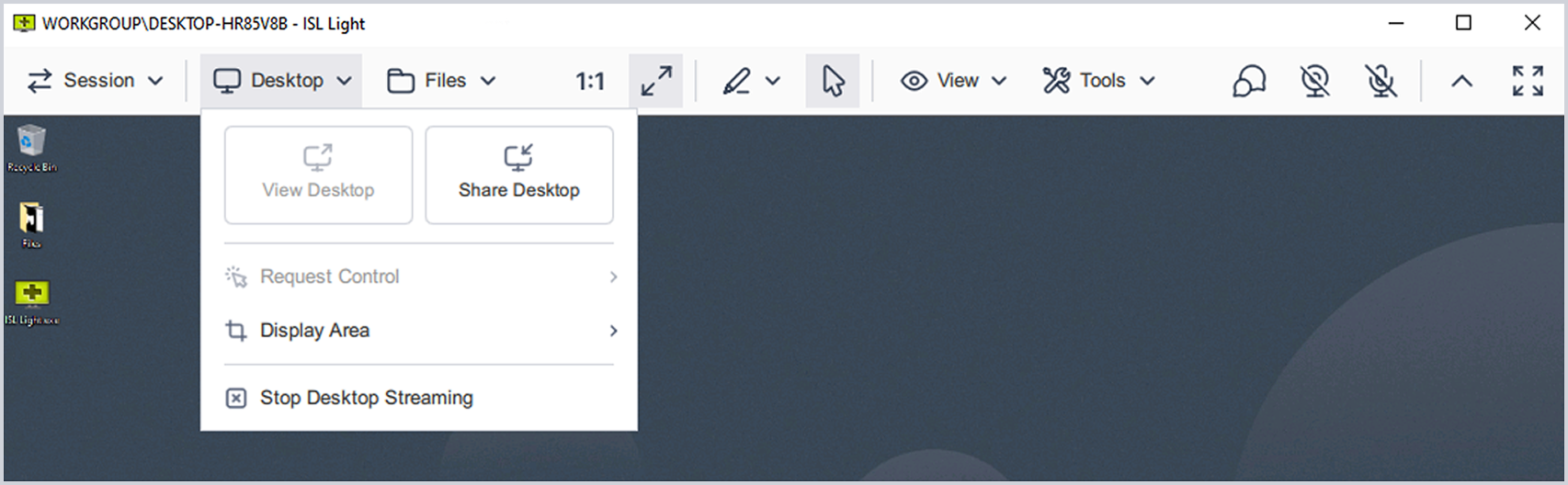
ISL Light > Sitzung > Menü „Desktop“
- Desktop anzeigen: Zeigt die Remote-Desktop-Oberfläche für den Echtzeit-Support an.
- Bildschirm freigeben: Geben Sie Ihren eigenen Bildschirm für den Remote-Anwender frei. Sie können wählen, ob Sie Ihren gesamten Bildschirm, eine bestimmte Anwendung oder einen ausgewählten Bereich freigeben möchten.
- Steuerungsanfrage: Wenn die Maus-/Tastatursteuerung bereits vergeben oder deaktiviert ist, können Sie sie über diese Option anfordern. Der Remote-Anwender muss Ihre Steuerungsanfrage genehmigen.
- Anzeigebereich: Wählen Sie aus, ob Sie den gesamten Desktop, die Monitore oder einen benutzerdefinierten Bereich anzeigen möchten.
- Desktop-Streaming beenden: Beendet die Desktop-Anzeige oder -Freigabe.
Datei-Menü
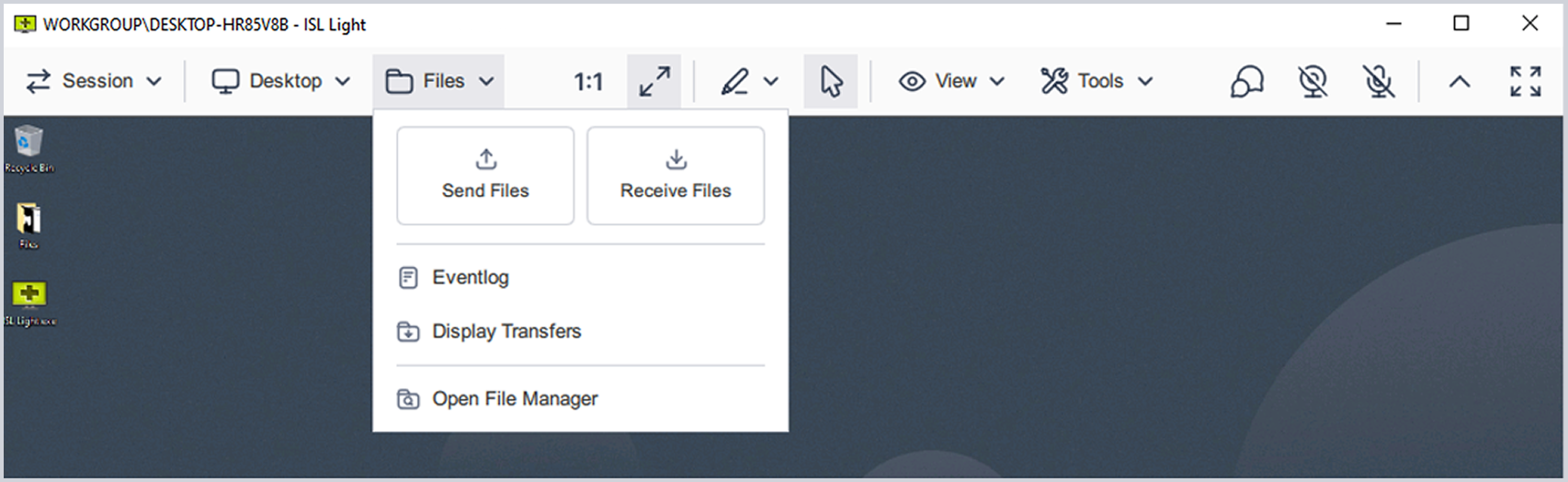
ISL Light > Sitzung > Menü „Dateien“
- Dateien senden: Übertragen Sie Dateien von Ihrem Computer auf das Remote-Gerät.
- Dateien empfangen: Übertragen Sie Dateien vom Remote-Gerät auf Ihren Computer.
- Ereignisprotokoll: Durch Zugriff auf die Dateiübertragungsprotokolle können Sie Upload- und Download-Vorgänge während der Sitzung überwachen. Dies ist hilfreich für die Überprüfung und Nachverfolgung von Dateibewegungen.
- Übertragungen anzeigen: Öffnet ein Fenster, in dem der Fortschritt aktueller und vergangener Dateiübertragungen angezeigt wird. Bietet einen Echtzeit-Status zu Vorgängen in der Warteschlange oder bereits abgeschlossenen Vorgängen.
- Dateimanager öffnen: Startet einen speziellen Dateimanager mit zwei Fenstern für die erweiterte Dateinavigation und Dateiübertragungen zwischen lokalen und Remote-Geräten.
Monitore & Skalierung
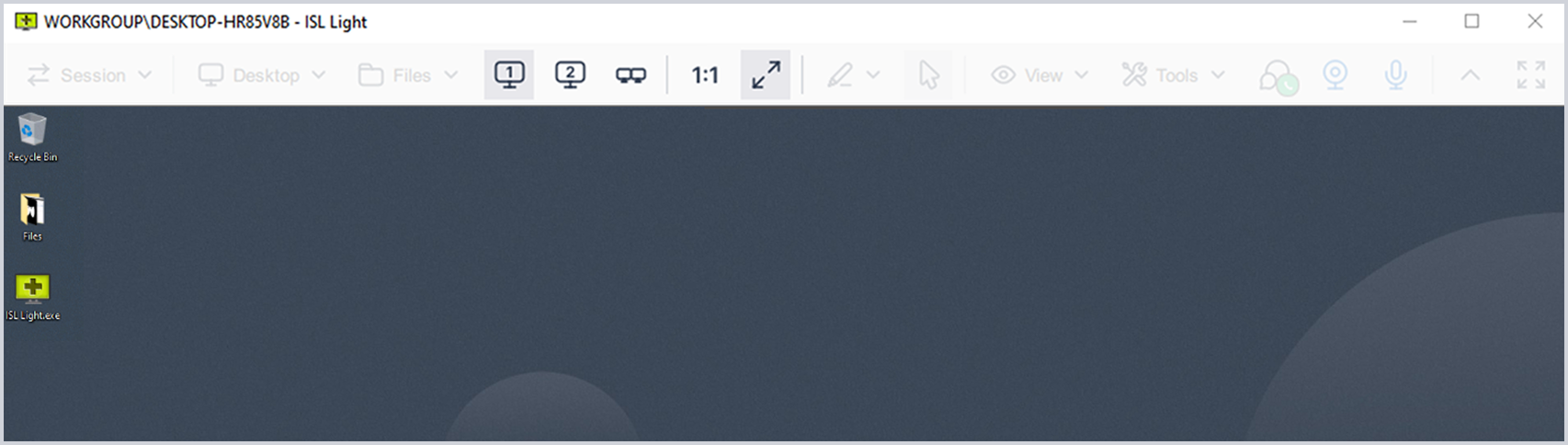
ISL Light > Sitzung > Anzeigeeinstellungen
- Monitor 1 / Monitor 2 / Monitor ... / Alle Monitore: Wechseln Sie zwischen einzelnen Remote-Monitoren oder zeigen Sie alle an.
- Größe 1:1: Zeigt den Remote-Desktop in seiner nativen Auflösung ohne Skalierung an. Gewährleistet eine pixelgenaue Darstellung.
- Ansicht anpassen: Passt die Größe des Remote-Bildschirms so an, dass er in das lokale Fenster passt, wobei die Sichtbarkeit gewährleistet bleibt, ohne dass Bildlaufleisten erforderlich sind.
Whiteboard-Werkzeuge
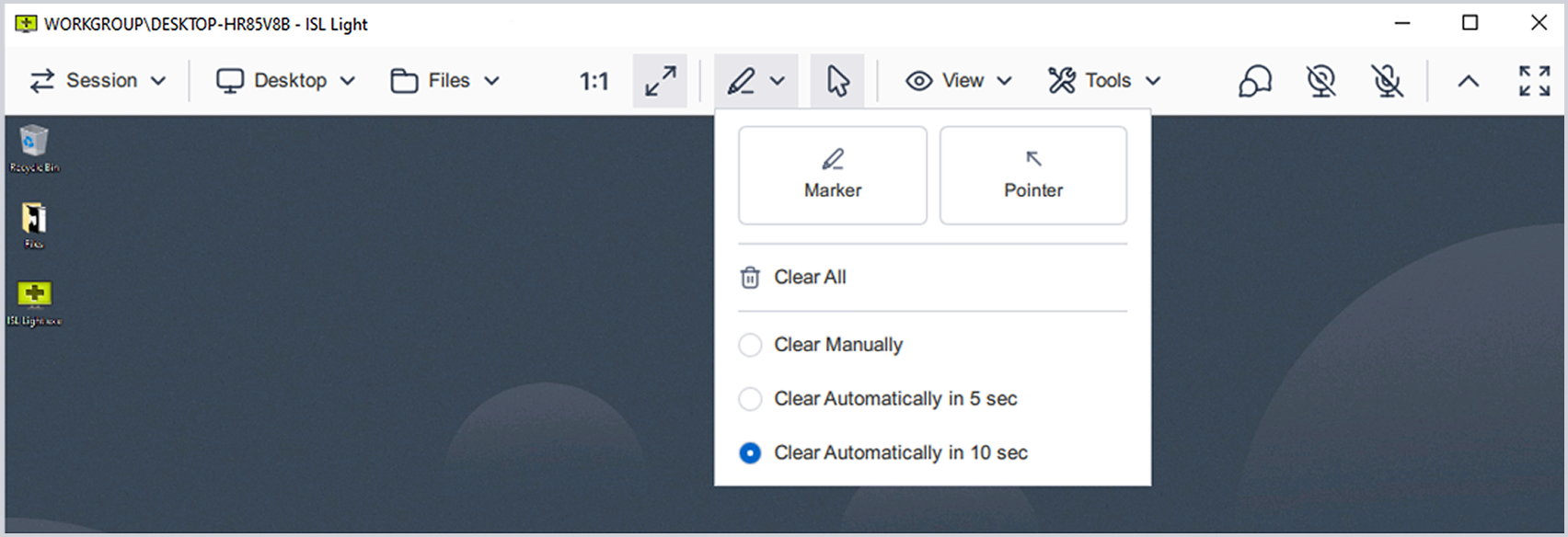
ISL Light > Sitzung > Menü „Whiteboard“
- Tool: Zeichnen Sie mit einem virtuellen Stift frei auf dem Bildschirm der Fernbedienung. Ideal für Anmerkungen während Erklärungen oder Schulungen.
- Zeiger: Markieren Sie bestimmte Elemente auf dem Bildschirm des Gegenübers mit einem Pfeil. So können Sie die Aufmerksamkeit lenken, ohne selbst etwas zeichnen zu müssen.
- Alle löschen: Entfernt alle Anmerkungen vom Remote-Bildschirm.
- Manuell löschen: Die Anmerkungen bleiben bestehen, bis sie manuell gelöscht werden.
- Nach 5 Sekunden automatisch löschen: Entfernt Anmerkungen nach einer Verzögerung von 5 Sekunden automatisch.
- Nach 10 Sekunden automatisch löschen: Anmerkungen werden nach einer Verzögerung von 10 Sekunden automatisch entfernt.
- Maussteuerung: Eine Schaltfläche rechts neben den Whiteboard-Werkzeugen, mit der man wieder zur Maussteuerung zurückwechseln kann.
Menü anzeigen
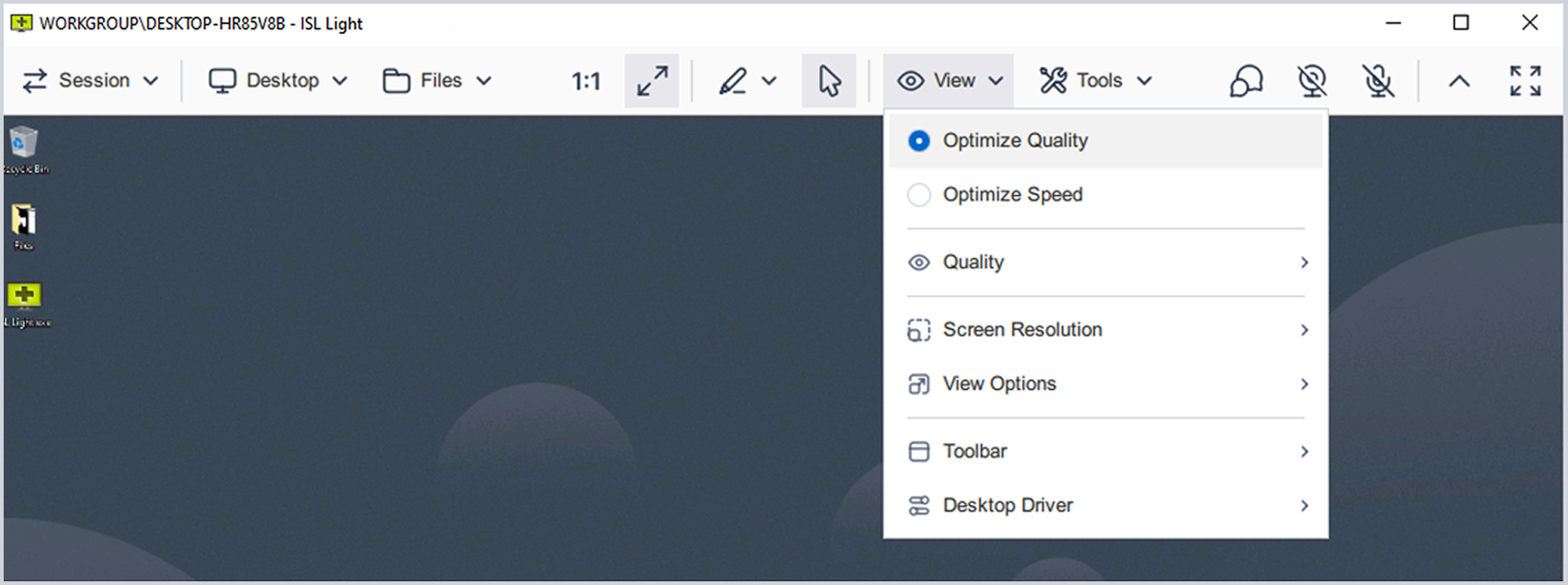
ISL Light > Sitzung > Menü „Ansicht“
- Qualität optimieren / Geschwindigkeit optimieren: Schnelle Voreinstellungen, um entweder der Bildqualität oder der Leistung Vorrang zu geben. Dies ist nützlich, wenn sich die Netzwerkbedingungen während der Sitzung ändern.
- Qualität: Stellen Sie die Anzeigequalität manuell ein (Niedrig, Mittel, Hoch, Best). Höhere Einstellungen verbessern die Lesbarkeit, erfordern jedoch einen höheren Bandbreitenverbrauch.
- Bildschirmauflösung: Passen Sie die Auflösung des Remote-Displays an Ihren lokalen Bildschirm an. Dies verbessert die visuelle Darstellung und erleichtert die Arbeit, wenn beide Seiten dieselbe Auflösung verwenden.
- Anzeigeoptionen: Wählen Sie aus vereinfachten Skalierungsvoreinstellungen wie „An Bildschirm anpassen“, „Ausfüllen“, „1:1“, „1:2“ oder „An Breite/Höhe anpassen“, um die Fernanzeige nach Bedarf anzupassen.
- Symbolleiste: Position der Symbolleiste festlegen (oben, links, rechts).
- Desktop-Treiber: Wählen Sie aus, welcher Treiber zur Erfassung der Aktualisierungen des Remote-Bildschirms verwendet werden soll.
- Monitore in mehreren Fenstern öffnen: Jeden Remote-Monitor in einem separaten Fenster öffnen.
Menü „Extras“
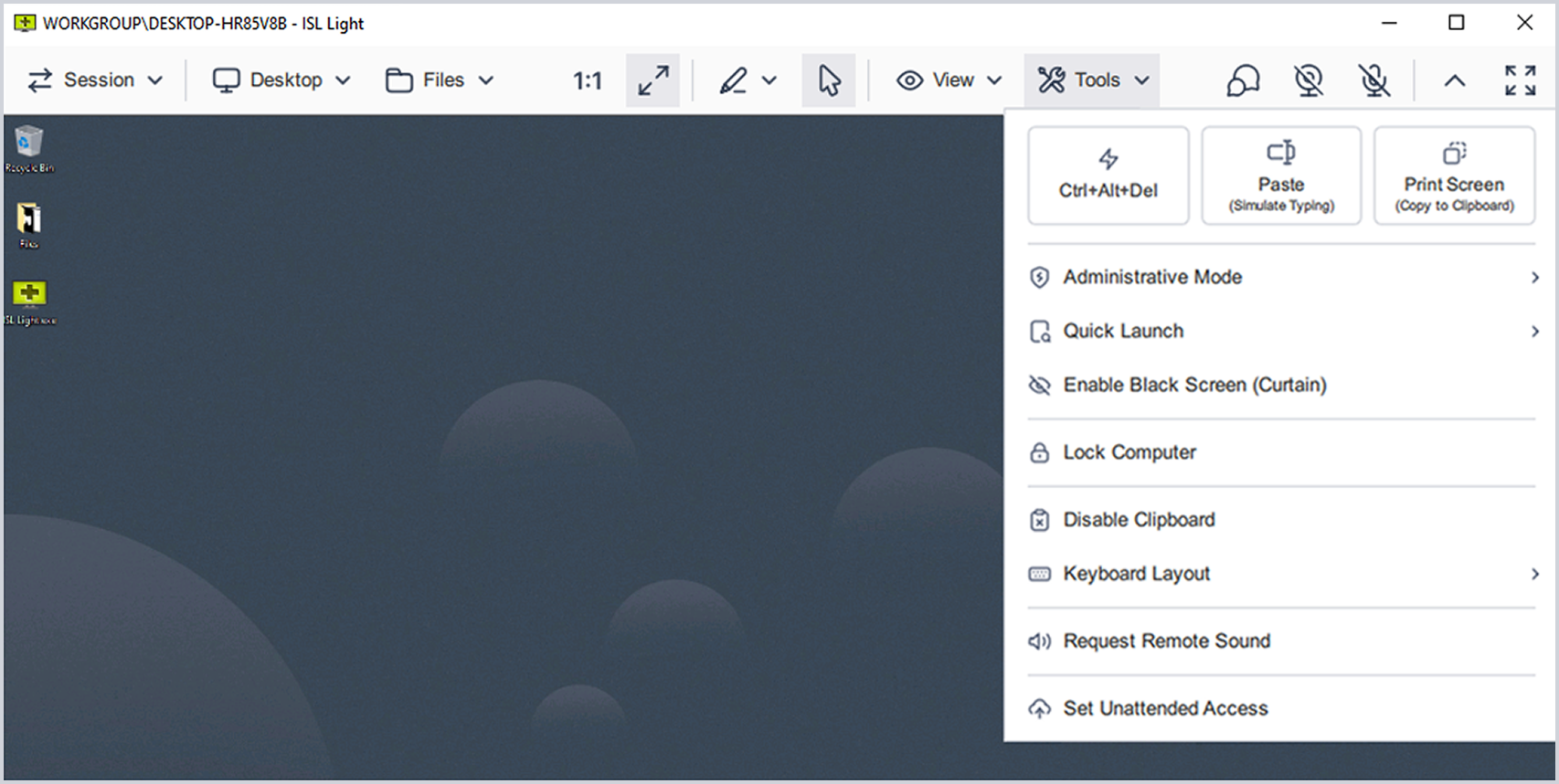
ISL Light > Sitzung > Menü „Extras“
- Strg + Alt + Entf: Sendet eine Befehlsfolge an das Remote-System. Wird häufig verwendet, um den Anmeldebildschirm, den Sperrbildschirm oder den Task-Manager aufzurufen.
- Einfügen (Tastatureingabe simulieren): Sendet den Inhalt der Zwischenablage als simulierte Tastenanschläge. Nützlich zum Einfügen von Text in sichere Kennwortfelder, in denen das Einfügen aus der Zwischenablage deaktiviert ist.
- Bildschirm drucken: Fügt einen Screenshot des Remote-Desktops in die Zwischenablage ein.
- Administratormodus: Erweitern Sie die Sitzung, um Administratorrechte auf dem Remote-Desktop zu erhalten.
- Schnellstart: Greifen Sie auf Anwendungen zu, um Probleme schneller zu beheben.
- Schwarzen Bildschirm aktivieren (Vorhangmodus): Schaltet das Display der Fernbedienung aus, um sensible Vorgänge vor neugierigen Blicken vor Ort zu schützen. Nützlich zum Schutz der Privatsphäre oder bei unbeaufsichtigten Wartungsarbeiten.
- Computer sperren: Das Remote-Gerät sperren.
- Zwischenablage deaktivieren: Deaktivieren Sie vorübergehend die Synchronisierung der Zwischenablage zwischen lokalen und Remote-Systemen. Dies ist nützlich, wenn der Inhalt der Zwischenablage aus Datenschutz- oder Sicherheitsgründen isoliert bleiben soll.
- Tastaturlayout: Passen Sie das Tastaturlayout an oder synchronisieren Sie es zwischen lokalen und Remote-Systemen. Dies hilft, Eingabefehler bei der Verwendung unterschiedlicher Ländereinstellungen zu vermeiden.
- Ton vom Remote-Gerät streamen: Spielt Audio vom Remote-Gerät ab.
- Unbeaufsichtigten Zugriff einrichten: Konfigurieren Sie den Remote-Computer für unbeaufsichtigte Verbindungen. Ermöglicht den zukünftigen Zugriff, ohne dass eine manuelle Genehmigung durch den Remote-Anwender erforderlich ist.
Chat, Kamera & Mikrofon
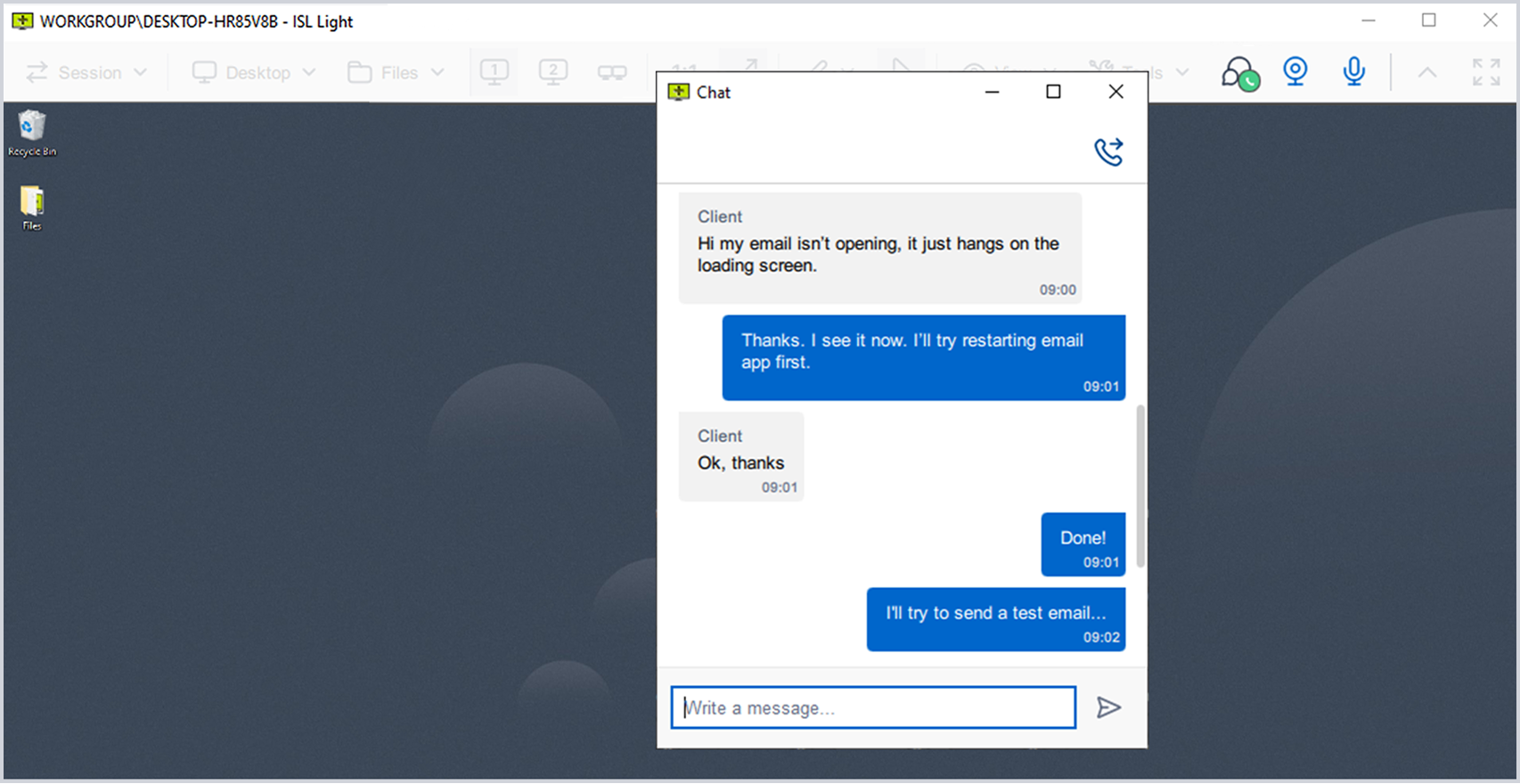
ISL Light > Sitzung > „Rechter Bereich“ (auch bekannt als „Kommunikations- und Fenstersteuerung“)
- Chat: Techniker und Kunden können während einer Fernsitzung Textnachrichten austauschen. Dies ist nützlich, um Schritte zu erläutern, Anweisungen weiterzugeben oder Fehlermeldungen zu kopieren, ohne die Bildschirmfreigabe zu unterbrechen.
- Kamera und Mikrofon: Die Schaltflächen „Kamera“ und „Mikrofon“ befinden sich in der Symbolleiste und ermöglichen es Ihnen, Audio- und Videofunktionen mit einem einzigen Klick zu starten oder zu verwalten.
Fenstersteuerung
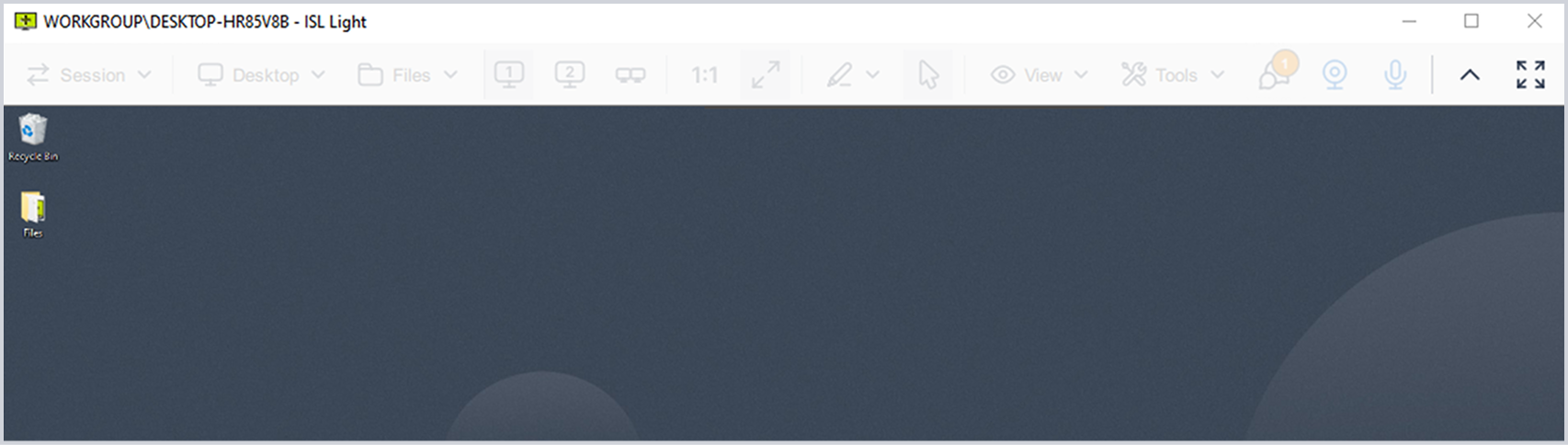
ISL Light > Sitzung > „Rechter Bereich“ (auch bekannt als „Kommunikations- und Fenstersteuerung“)
- Symbolleiste ein-/ausblenden: Die Sitzungs-Symbolleiste manuell ein- oder ausblenden.
- Vollbild: Die Remote-Sitzung im Vollbildmodus anzeigen.
15 Tage kostenlos testen
Entdecken Sie die neue Remote-Desktop-Erfahrung!
Keine Kreditkarte erforderlich.

Paket mit PDQ: Geräte sichern, patchen und verwalten
Entdecken Sie PDQ Connect – ein modernes Tool zur Verwaltung von Remote- und lokalen Geräten. Automatisieren Sie Bereitstellungen mit vorgefertigten und benutzerdefinierten Paketen, gewinnen Sie wichtige Einblicke in Ihr Inventar, schließen Sie Sicherheitslücken automatisch und unterstützen Sie Endbenutzer mit der integrierten Remote-Desktop-Funktion.
