Remote Support for iOS
View the screen of a remote iPhone or iPad device in real-time and provide efficient technical support to iOS users.
 動画を見る (0:54)
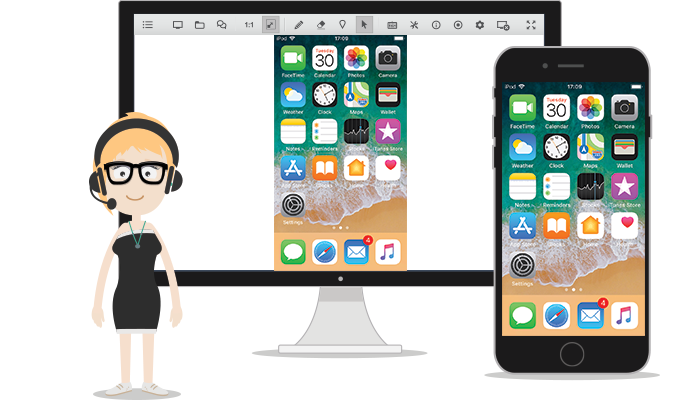
iOS Screen Sharing
Connect from your Windows, Mac or Linux computer to any iPhone or iPad running on iOS 11 or higher and view their remote screen in real-time. Provide efficient remote support to your clients using iOS devices.
Learn More about iOS Screen Sharing
Step 1
Enter the session code and tap "Join Session" to connect with the remote operator.
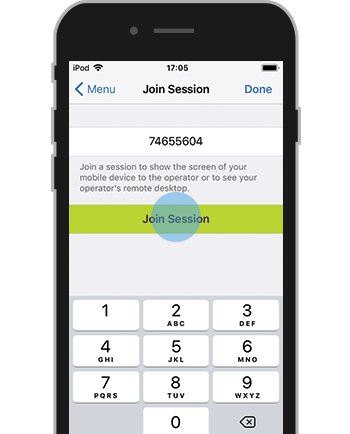
Step 2
Tap icon  to start screen broadcast.
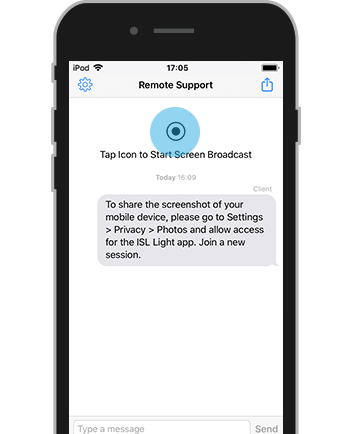
Step 3
Tap "Start Broadcast" to share the screen of the iOS device..
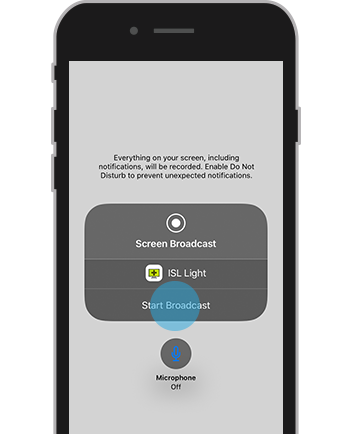
Step 4
You are now sharing your screen with the operator.
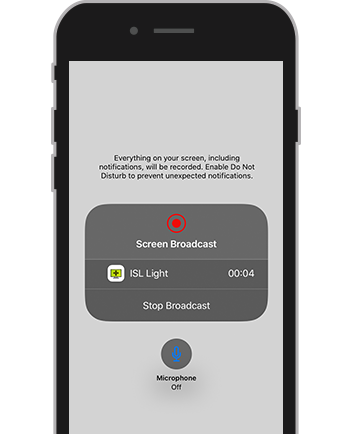
Support Mobile Devices
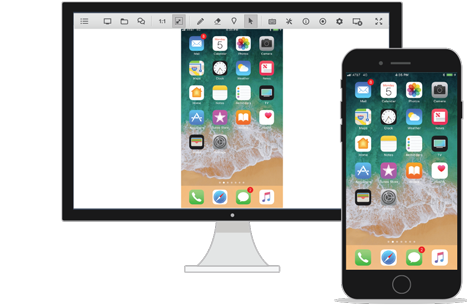
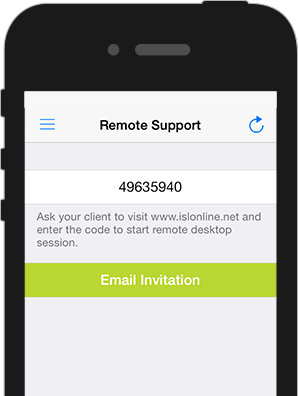
Access any iPhone or iPad remotely from your desktop computer.
- Securely access any iOS device via WiFi/3G/LTE.
- View the screen of a remote iPhone or iPad in real-time.
- Retrieve remote system information (CPU, RAM, battery, etc.).
- Text-chat with a remote user.
- Record a remote support session.
- Troubleshoot and resolve issues at customer's site.
Mobile to Computer

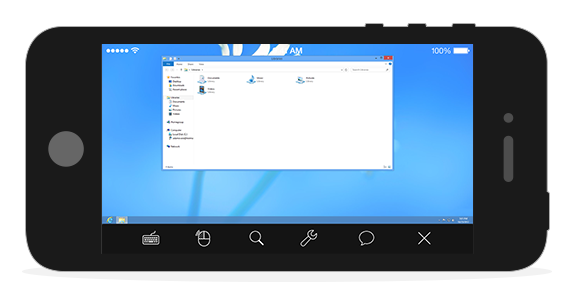
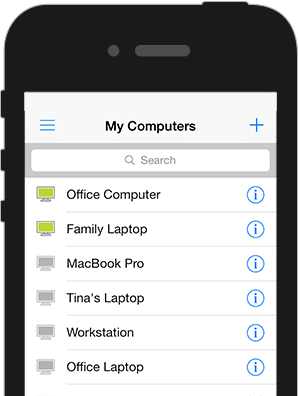
Access and control any remote computer from your iPhone or iPad.
- Access and control remote computers from your iPhone or iPad.
- Use special keys such as Ctrl, Alt, Windows® and function keys.
- Send Ctrl+Alt+Del to a remote computer.
- Reboot a remote computer and resume the session.
- Switch between the left and right mouse click.
- AES 256-Bit end-to-end encryption.
Remote Computer on Your iPhone or iPad
Connect to any Windows, Mac, or Linux computer and control a remote desktop from your iOS device.
Devices & platforms
iPhone, iPad, iPod touch, iOS 9, iOS 10, iOS 11, iOS 12, iOS 13, iPadOS
Learn More About System Requirements



Bundle with PDQ: Secure, Patch, and Manage Devices
Discover PDQ Connect - a modern tool for managing remote and local devices. Automate deployments with prebuilt and custom packages, gain essential inventory insights, patch vulnerabilities automatically, and support end users with built-in remote desktop.

