View Remote Screen
Use the power of remote desktop software to boost your productivity.
Download ISL Remote DesktopRemote Support
Simply start a remote support session and ask your client to join it. View and control the client's device to provide technical assistance effortlessly.
Remote Sales
Boost sales by sharing your screen with potential customers. Present your products or services in real time, offering an engaging and interactive sales experience.
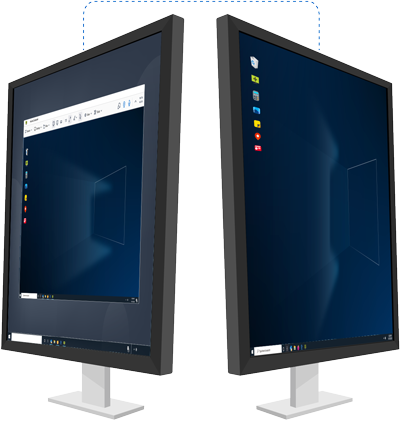
Remote Access
Access and securely manage your unattended remote devices from anywhere, ensuring you remain productive and connected at all times.
Remote Work
Securely access your office computer from home or while on the go. Screen sharing technology enables you to efficiently work remotely at any time, from anywhere in the world.
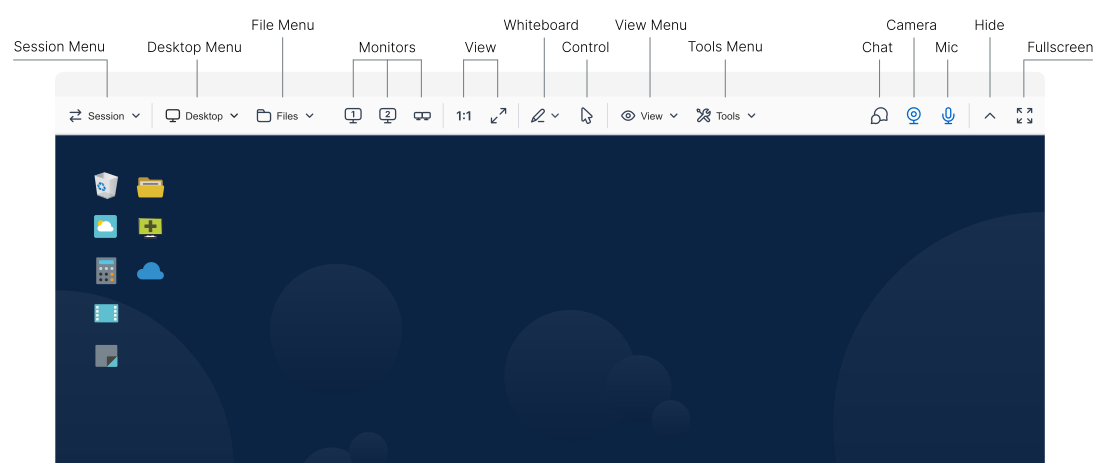
Control Remote Desktoplink
Everything you need to manage remote devices is at your fingertips.
Learn more about toolbar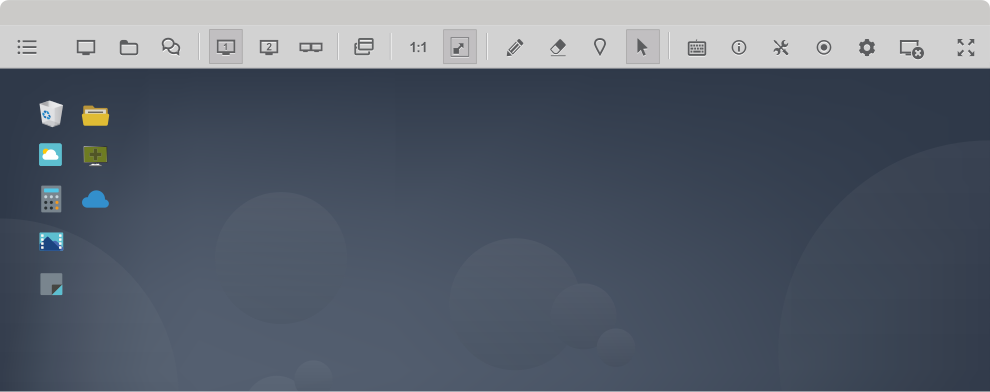
Comprehensive Managementlink
Gain a complete overview of computer groups, users, and user groups. Easily configure settings at both the domain and user levels. Use audit tools to monitor events for accountability purposes.
Learn more about administration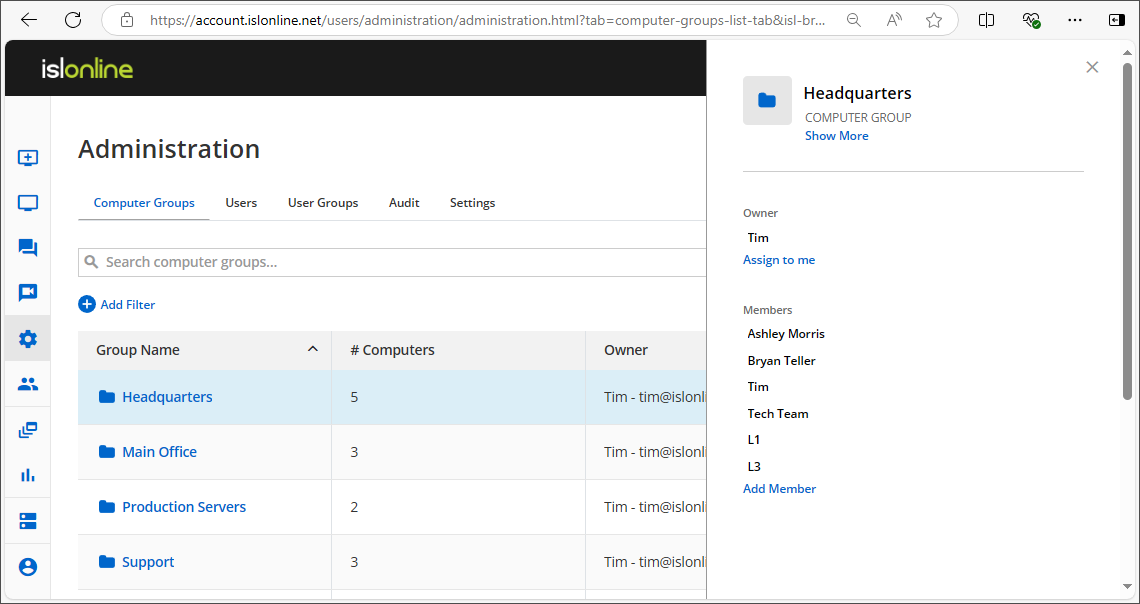
Computer Groups
Effortlessly organize and control all computer groups under your management.
Users
Assign roles, manage permissions, and ensure each user has appropriate access to the necessary resources.
Audit
Filter events by type and see when they happened, whether they were successful, who initiated the action, and the raw data of the event.
Settings
Manage scheduled access times for computers, require 2FA, set password length and complexity requirements, and more.
Users' Feedback is What We Value the Mostlink




Administrative Modelink
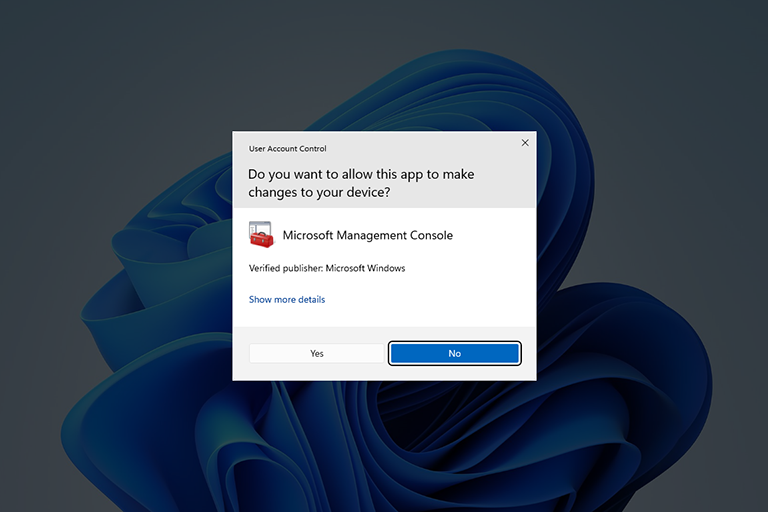
Seamlessly integrate with Windows User Account Control (UAC) to manage remote computers with full administrative rights. By default, ISL Light runs without admin permissions, but you can effortlessly elevate permissions for advanced support tasks when needed.
Restart and Resumelink
Restart a remote computer after installing new software and reconnect to the existing remote support session without interruption.
Read manual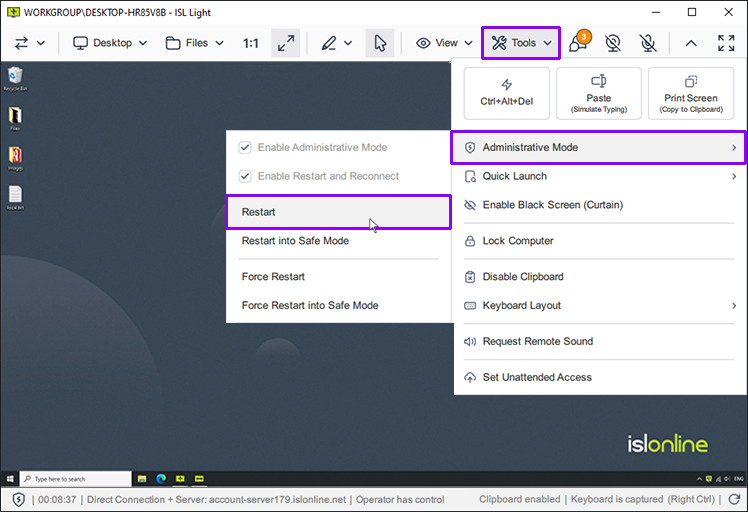
System Informationlink
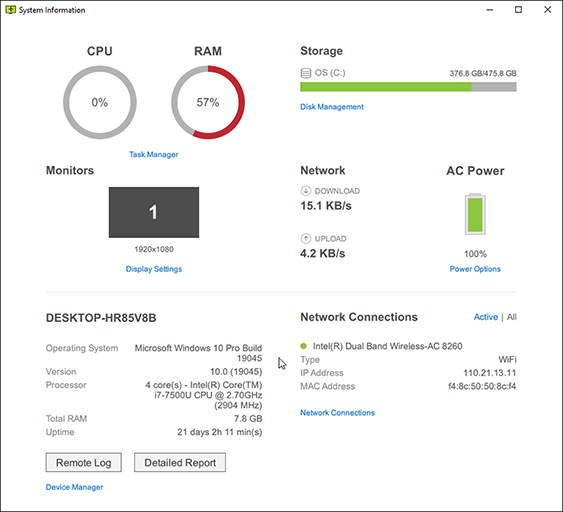
Get a clear visual representation of remote system information and generate a comprehensive report.
Record a Sessionlink
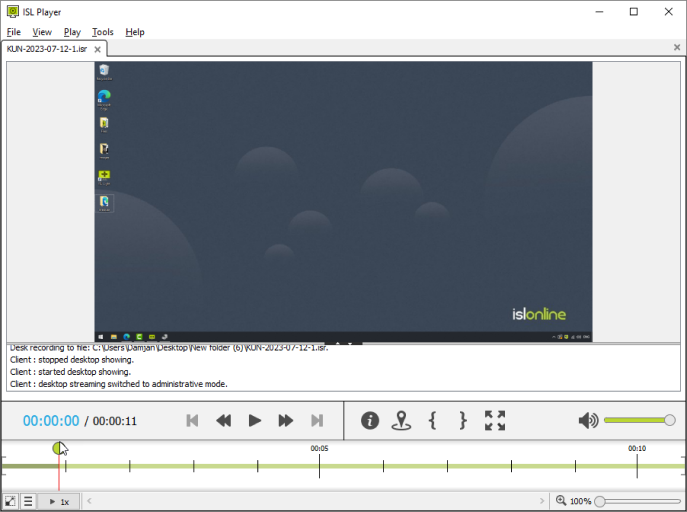
Configure automatic session recording as an additional security measure or to prevent potential disputes. Capture screen sharing, chat, audio, and video.
Optimise Your Viewlink
Enhance your remote support experience with customizable view settings. Optimize color depth, screen resolution, and monitor management to achieve the best visual performance.
play_circleWatch videoColor Depth
Quickly switch between 'Quality Optimized' and 'Speed Optimized' options, or choose from several detailed presets to find the perfect balance between visual clarity and performance when viewing a remote screen.
Read manualScreen Resolution
Adjust the remote computer's screen resolution to match the display size of your monitor.
Read manualMultiple Monitors
While controlling a remote computer, choose to display all remote monitors in a single window or separate them into different windows. Toggle between remote monitors, or drag and drop files from one monitor to another.
Read manual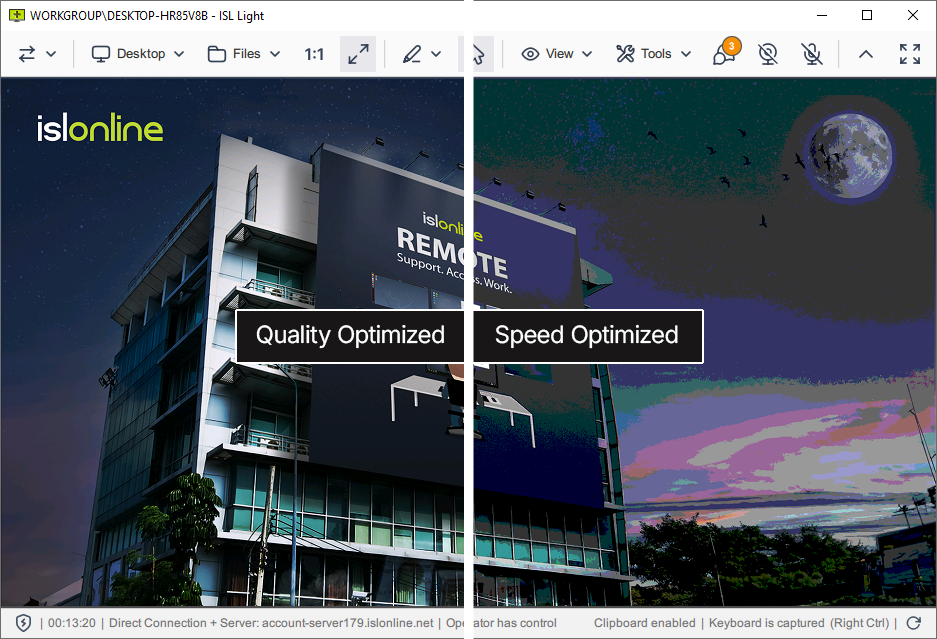
Transfer Files Securelylink
Transfer files quickly and securely between computers during a remote desktop session. The dual-panel File Manager allows fast navigation and enables you to manage files and folders on both the local and remote computers efficiently.
play_circleWatch video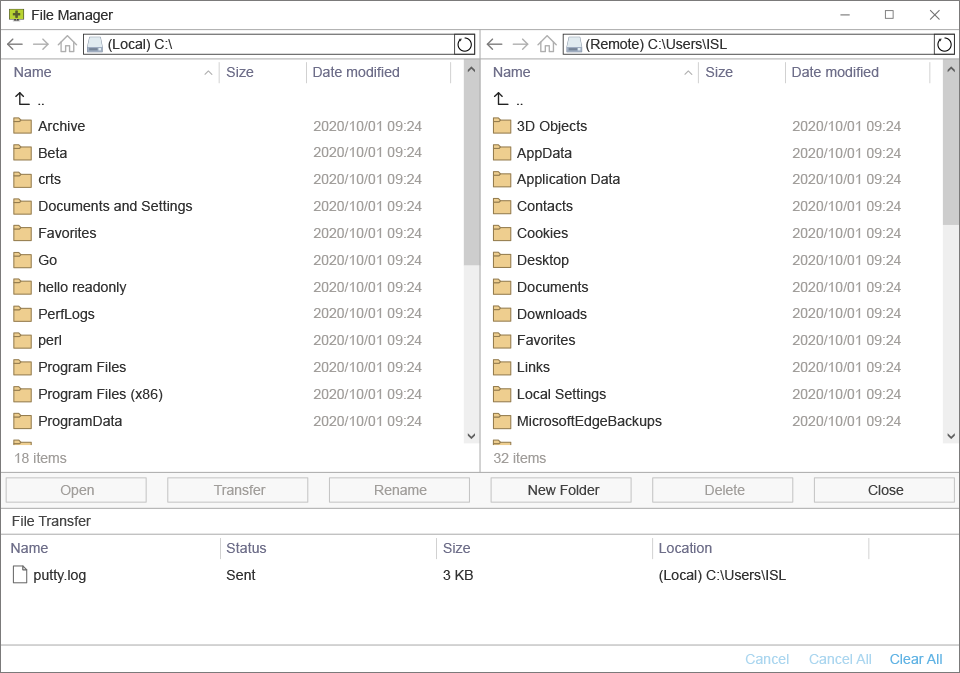
Collaborate With Your Customerlink
Enhance your customer support with interactive collaboration tools. Communicate effectively through chat, audio/video calls, and annotation tools to provide exceptional remote assistance.
play_circleWatch videoInstant Messaging
Chat with your client during the support session, exchange links, and attach chat transcripts to support tickets.
Read manualAudio/Video Call
Make support more personal and effective by starting a video call with your client.
Read manualAnnotation Tools
Highlight areas, draw, and give visual instructions to make troubleshooting and support more intuitive and clear.
Read manual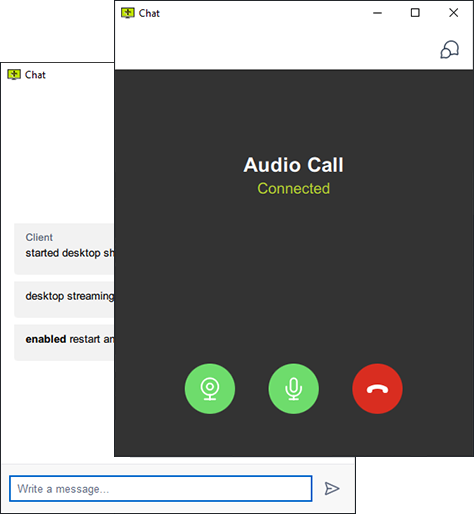
Support with a Custom Looklink
Apply your branding and tailor ISL Online to fit your workflow.
Logo and Colors
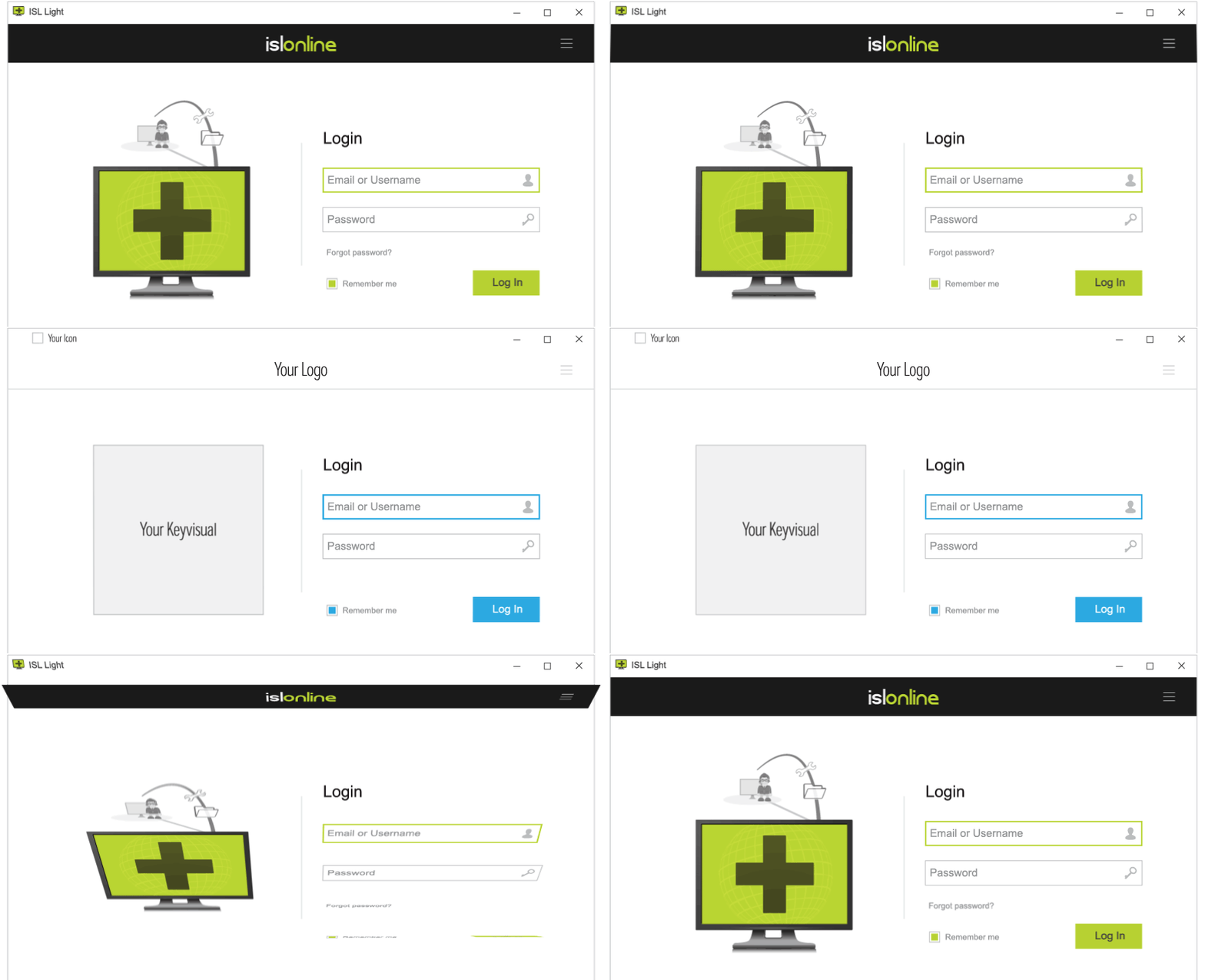
Add your logo and customize colors, change application names, icons, and key visuals to personalise the look and feel.
Read manualConnectBox
You can add a ConnectBox to your site and ask the client to join a session through your website. ConnectBox is a simple form where the client can enter the session code and click Connect.
Read manualCommand-Line Arguments
Adjust workflows and application layout with command-line arguments.
Read manualBranded Access Point
Create a custom webpage showcasing your logo, links, and colors, which you can use to invite your clients to join a remote support session.
Read manualWebAPI2
WebAPI2 allows you to integrate ISL Online with your third-party services or develop custom scripts for managing remote desktop sessions.
Read manualLanguage
ISL Online supports multiple languages, automatically selected by regional settings, with the option for users to manually change the language at any time.
Connect via RDP/SSHlink
Seamlessly route Microsoft Remote Desktop Protocol (RDP) or Secure Shell (SSH) sessions between your local computer and unattended computers running in the remote network without using a VPN or making any firewall changes.
RDP/SSH Jumpbox
A Jumpbox is a computer that serves as a bridge for your connection, allowing you to connect to any computer in the remote computer's local network.
Read manualCreate a Custom Tunnel
Besides RDP and SSH connections, you can tunnel any connection of your choice. The custom tunnel functionality can be used once you establish a session with the remote computer. Please refer to the manual for steps on creating a custom tunnel to the remote computer.
Read manual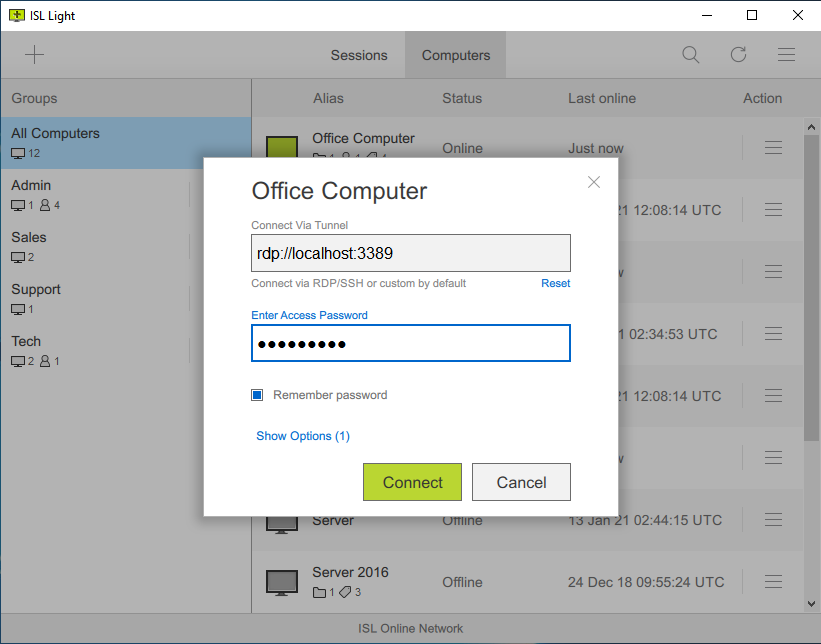
More Featureslink
Ways to Connectlink
Choose how to connect with your customers or unattended remote computers.
Desktop App (recommended)
For the best remote desktop experience, download and install the ISL Light application on your Windows, macOS, or Linux computer.
Read manualWeb Portal
Log into your ISL Online account through your browser to start a remote desktop session from the web portal.
Read manualMobile App
Get the mobile app (iOS, Android) to connect from your mobile device to remote computers or to allow a technician to troubleshoot your phone or tablet.
Read manualEssentialslink
Learn about the essential tools that will make your remote desktop experience both efficient and enjoyable.
View Remote Desktop
View the screen of a remote computer (Windows, macOS, or Linux) or mobile device (iOS or Android).
Read manualTransfer Session
Transfer your session to a colleague, allowing them to take over and continue.
Read manualInvite an Operator
Invite another technician to join your session and work together on troubleshooting technical issues.
Read manualPause a Session
Pause a remote support session and resume it instantly later. During the pause, your client can work on their computer without interruptions.
Read manualFile Manager
A dual-panel file manager allows you to quickly and efficiently transfer files and manage folders on both local and remote computers.
Read manualMultiple Monitors
Easily switch between remote monitors or view them all at once with flexible display modes.
Read manualColor Depth
Easily switch between 'Quality Optimized' and 'Speed Optimized' modes to view the remote screen, or choose from a variety of advanced configuration options.
Read manualScreen Resolution
Adjust the remote computer's screen resolution to match the display size of your monitor.
Read manualBlack Screen (Curtain Mode)
Temporarily activate a black screen (curtain) to hide sensitive information.
Read manualStream Remote Sound
Play audio from the remote computer through your speakers or headset.
Read manualAdministrative Mode
Seamlessly interact with Windows UAC and manage a remote computer with administrative rights.
Read manualRestart and Resume
Restart a remote computer after installing new software and reconnect to the existing remote support session without interruption.
Read manualQuick Launch
Directly launch essential system apps on the remote computer, such as Command Prompt, Device Manager, and Task Manager, all from your local computer.
Read manualKeyboard Commands
Run common keyboard shortcuts on a remote computer, including Ctrl+Alt+Del.
Read manualEnd-Of-Session Dialog
At the end of the remote support session, display a simple text input form where the operator and/or the client can provide feedback about the session.
Read manualCollaborationlink
Enhance your customer support with interactive collaboration tools. Communicate effectively through chat, audio/video calls, and annotation tools to provide superior remote assistance.
Audio/Video Call
Make support more personal and effective by starting a video call with your client.
Read manualChat
Chat with your client during the support session, exchange links, and attach chat transcripts to support tickets.
Read manualAnnotation Tools
Highlight areas, draw, and give visual instructions to make troubleshooting and support more intuitive and clear.
Read manualComputerslink
Effortlessly organize and control all computers and computer groups under your management.
Custom Deployment Link
Generate and deploy a link with the necessary parameters to quickly set up a remote access agent on multiple remote computers.
Read manualMass Deployment
Use Microsoft Intune or similar deployment tools to install remote access agents on multiple computers in bulk.
Read manualDeploy Settings
Deploy a registry file with settings of your choice to multiple computers at once.
Read manualChange Owner
Transfer ownership of a remote computer to another user, granting them full management rights. The new owner will have the ability to move, edit, or delete the computer.
Read manualComputer Groups
Create computer groups (e.g., Home, Office) and add your remote computers to the appropriate groups.
Read manualShare Computers
Share an individual computer or a group of computers with another user or user group, allowing them to manage the computers within the group.
Read manualComputer Tags
Add tags to each computer to quickly find and organize them by specific tags.
Read manualComputer Shortcut
Create a shortcut to a computer you frequently access and place it on your desktop or pin it to the taskbar for easy access.
Read manualFile Sharing
You can specify files or folders on a computer to be accessible via remote connection.
Read manualUpgrade ISL AlwaysOn
Easily upgrade the remote access agent on all your computers with a single click.
Read manualAccess Password
Set a main access password for your remote computer, a connection access password for shared computers, or a one-time password for temporary access.
Read manualEmail Notifications
Receive an email notification whenever a remote access session starts, ends, fails, or when files are downloaded from a specific computer.
Read manualLocal User Consent
Give your customers control over whether to accept or reject an incoming remote access connection.
Read manualAccess History
Access history enables you to view and search through remote connections made to a specific computer for audit purposes.
Read manualUserslink
Assign roles, manage permissions, and ensure each user has appropriate access to the necessary resources.
Permissions
Set detailed permissions for each user individually, or create domains to apply domain-specific rules to all users within a domain.
Read manualLicense Usage
Monitor ongoing sessions and manage your license usage, with the option to terminate active sessions directly from your account when needed.
Read manualExternal Authentication
ISL Online integrates with external user directories like Microsoft Active Directory, NetIQ eDirectory, LDAP, RADIUS, and SAML 2.0, enabling simple and secure user management.
Read manualSingle Sign-On (SSO)
Users from your organization are able to log into their ISL Online account through your SSO identity provider (e.g., Microsoft Entra, Okta, etc.) via the secure SAML 2.0 protocol.
Read manualReports
Utilize reports to gain insights into your remote support activity and make data-driven decisions to optimize your support workflow.
Read manualCustomizationlink
Apply your branding and tailor ISL Online to fit your workflow.
Logo and Colors
Add your logo and customize colors, change application names, icons, and key visuals to personalize the look and feel.
Read manualConnect Box
Add a textbox to your website to let your clients join a remote support session directly from there.
Read manualBranded Access Point
Create a custom webpage showcasing your logo, links, and colors, which you can use to invite your clients to join a remote support session.
Read manualWebAPI2
WebAPI2 allows you to integrate ISL Online with your third-party services or develop custom scripts for managing remote desktop sessions.
Read manualLanguage
ISL Online supports multiple languages, automatically selected by regional settings, with the option for users to manually change the language at any time.
Securitylink
Advanced encryption, compliance, and robust security features.
Learn more about securityAES 256-bit Encryption
Industry-standard AES 256-bit end-to-end encryption protects the data traveling between the operator and the client.
RSA 2048/4096-bit, ECDSA P-256
We apply industry-standard security technologies to protect your data and comply with the strictest security standards.
Two-Factor Authentication (2FA)
Enable two-factor authentication as an extra layer of security.
Code Signing
ISL Online applications are digitally signed by means of a Code Signing certificate, which reliably identifies ISL Online as the software publisher.
Port Filtering
Unless a stricter firewall policy is applied, ISL Online works with your existing firewall and does not require any additional configuration.
ISO 27001:2022 Certification
ISL Online Headquarters holds the ISO/IEC 27001:2022 certificate which proves our commitment to information security.
Function Transparency
The software's functionality is transparent, ensuring that the client can always monitor and control the actions performed by the helpdesk operator.
Allow / Deny Lists
You are able to limit the data access to ISL Online servers based on the IP and/or MAC addresses.
Intranet (LAN-only) Option
If you plan to use ISL Online within your LAN (intranet) only, there is no need for a public IP address.
Try 15 Days For Free
Enjoy your new remote desktop experience!
No credit card required.

Bundle with PDQ: Secure, Patch, and Manage Devices
Discover PDQ Connect - a modern tool for managing remote and local devices. Automate deployments with prebuilt and custom packages, gain essential inventory insights, patch vulnerabilities automatically, and support end users with built-in remote desktop.